Content Creation
Dashboards
Help students find their place and keep learning.
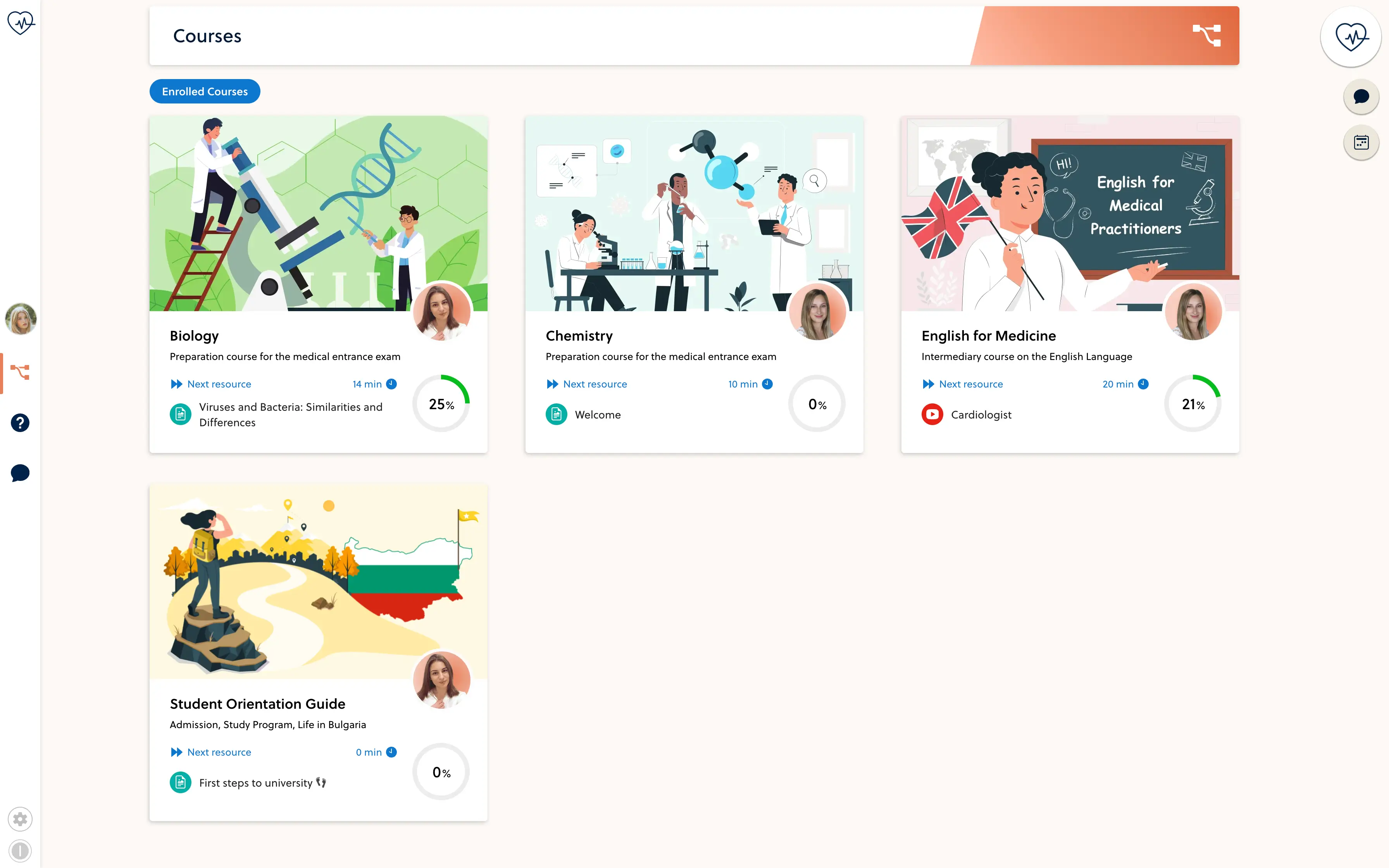
- Find the course
- See the next step
- Stay connected
Give every course a clear starting point.
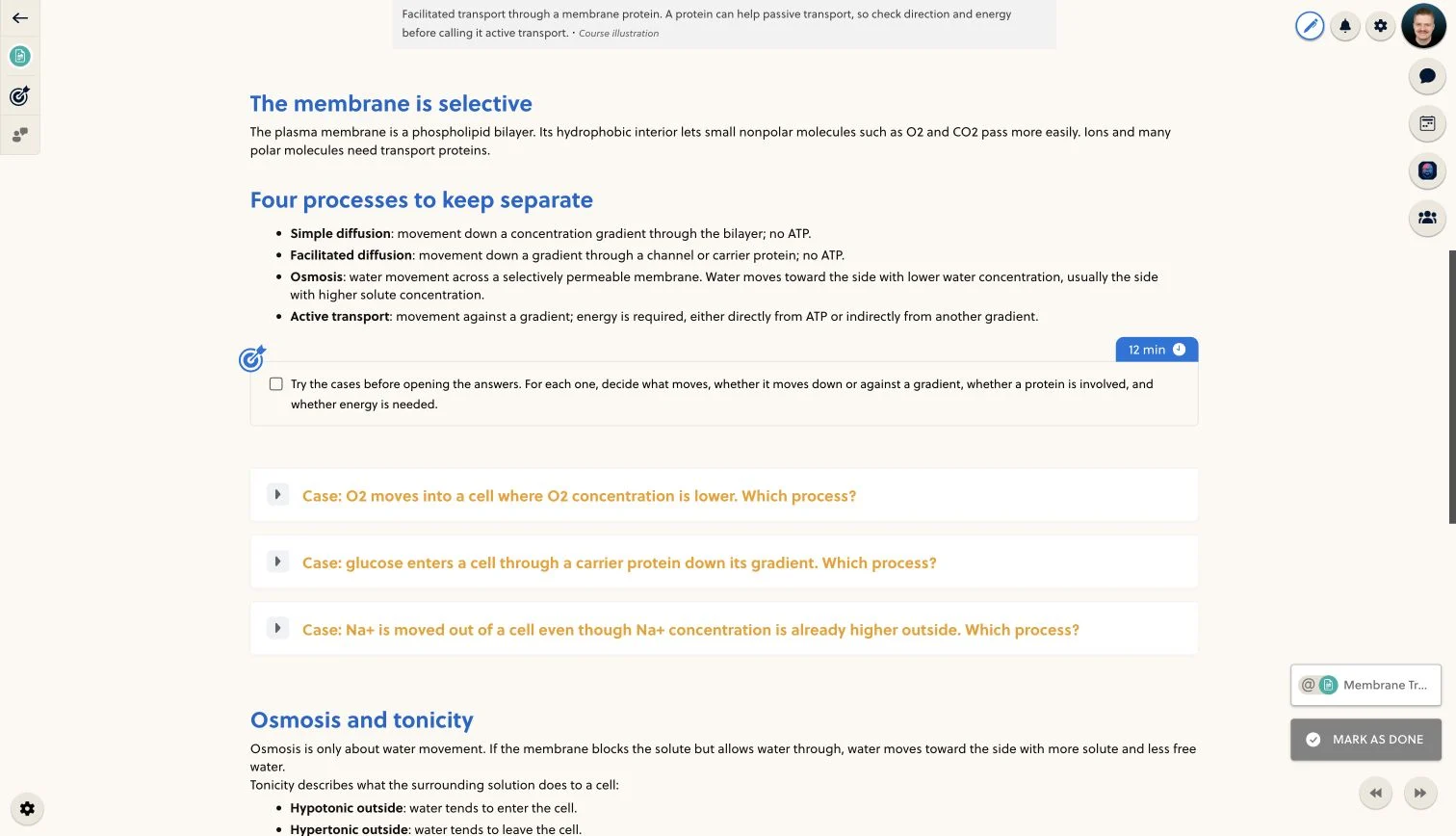
Students should not have to search through old links to resume studying. Course views bring the available material together, while access follows each learner's enrollment and course permissions.
- Course list
- Progress indicators
- Next resource
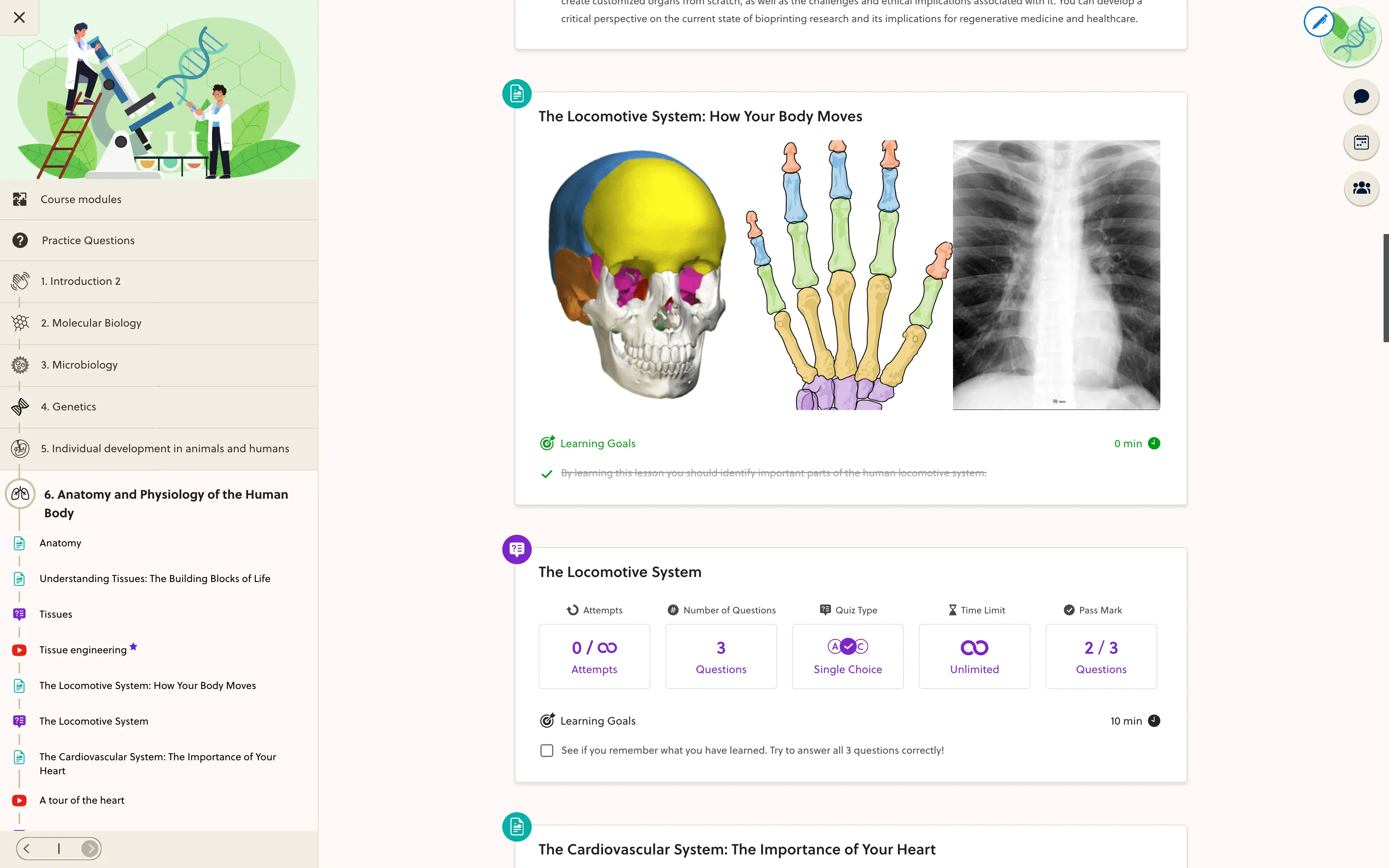
- Module outline
- Learning objectives
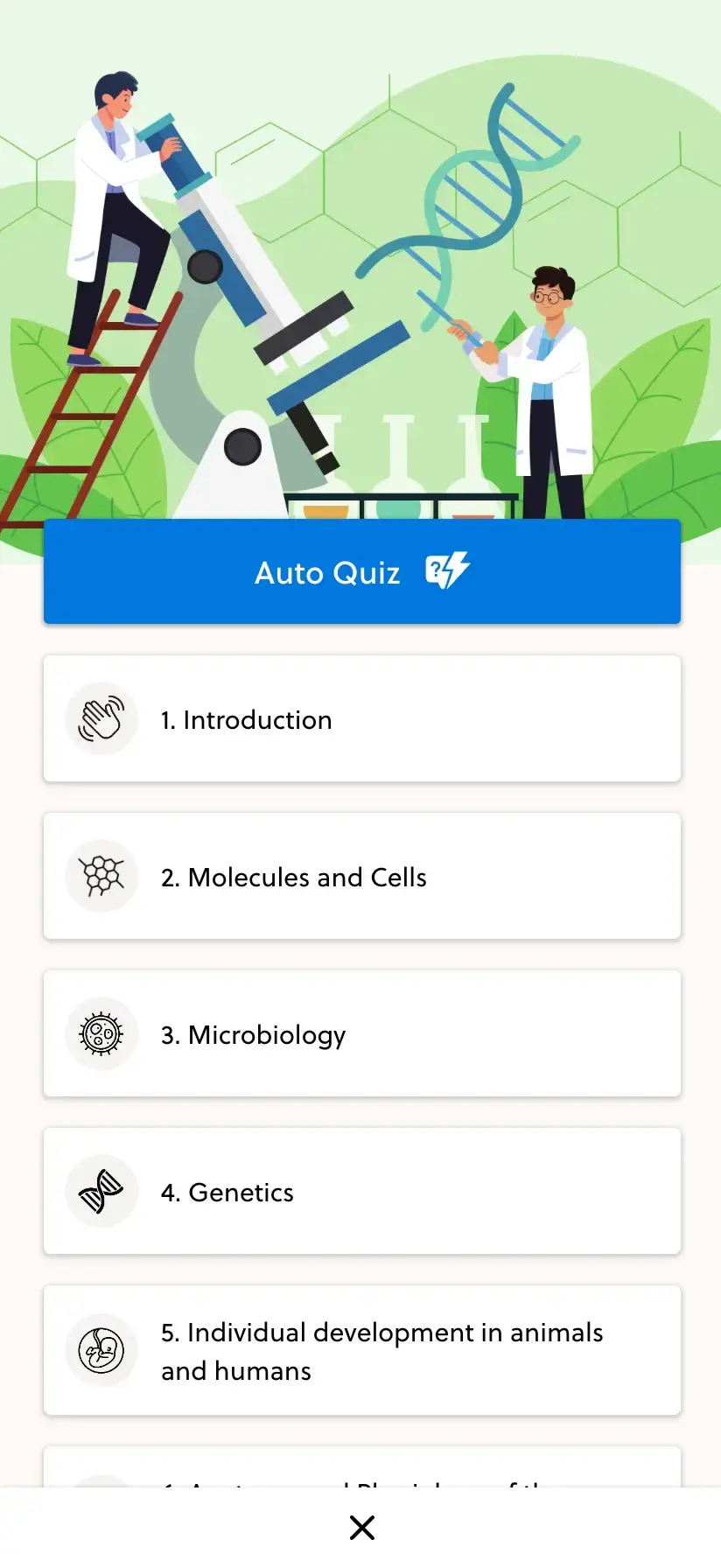
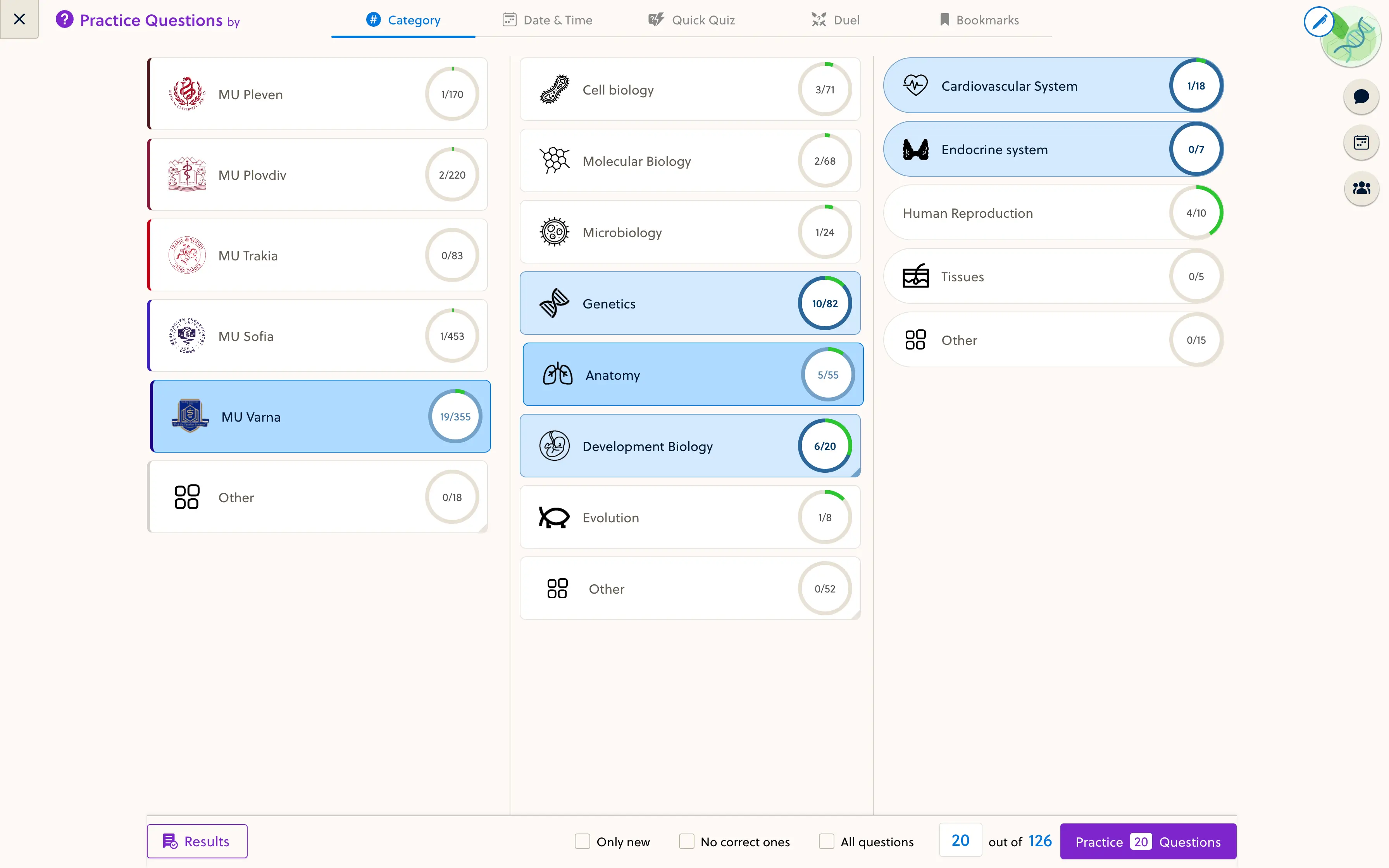
- Practice access
What appears depends on the learner's access and the features enabled in your space.
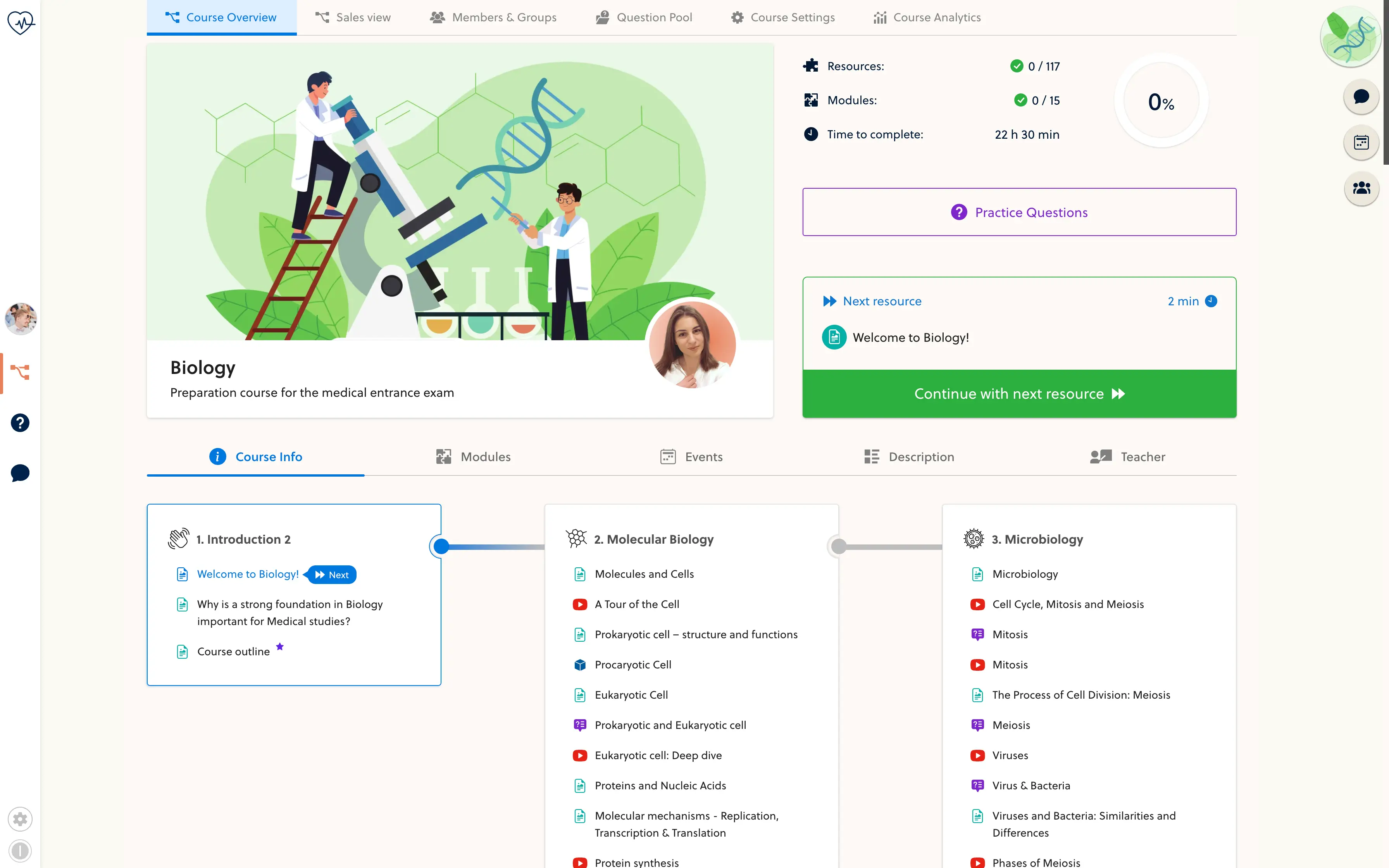
Turn progress into a useful next step.
A percentage is more useful when the student can act on it. The course journey connects progress with the next resource and the module outline, so learners can continue or revisit the wider subject.
- Return to the next learning resource
- See how lessons fit into the module
- Open practice when the course includes it
Keep the route back to learning familiar.
Dashboard messages and events can bring course updates into the same environment. Student, teacher and curator views serve different roles; review the actual learner journey on desktop and mobile before launch.
- Confirm the student's course access
- Review enabled messages and events
- Check the route into a lesson on mobile
Frequently asked questions
What can students find in their dashboard?
The student dashboard has course and messages-and-events views. The content shown depends on enrollment, access and enabled features. Course cards can connect progress, objectives and the next resource.
Is this a custom analytics dashboard builder?
No. This page describes the built-in learning and role-based dashboard views, not a drag-and-drop reporting or business-intelligence tool.
Do teachers see the same dashboard as students?
No. Student, teacher and curator views are role-specific. Confirm the permissions and workflow for each role in your own space.
Does course progress prove mastery?
No. Completion progress and assessed understanding are different. Use quiz results and suitable assessments alongside completion when reviewing learning.
Are messages, events and streaks always shown?
No. Available content depends on the account and space configuration. Streaks require the relevant engagement feature to be enabled; they are not a universal dashboard promise.
Show us how your students return to study.
Walk through the learner's starting point, course access and next step with the founder.