Content Creation
Video Lessons
Make your teaching videos part of a complete lesson.
- Bring the video
- Build the lesson
- Review playback
Start with the video you already teach with.
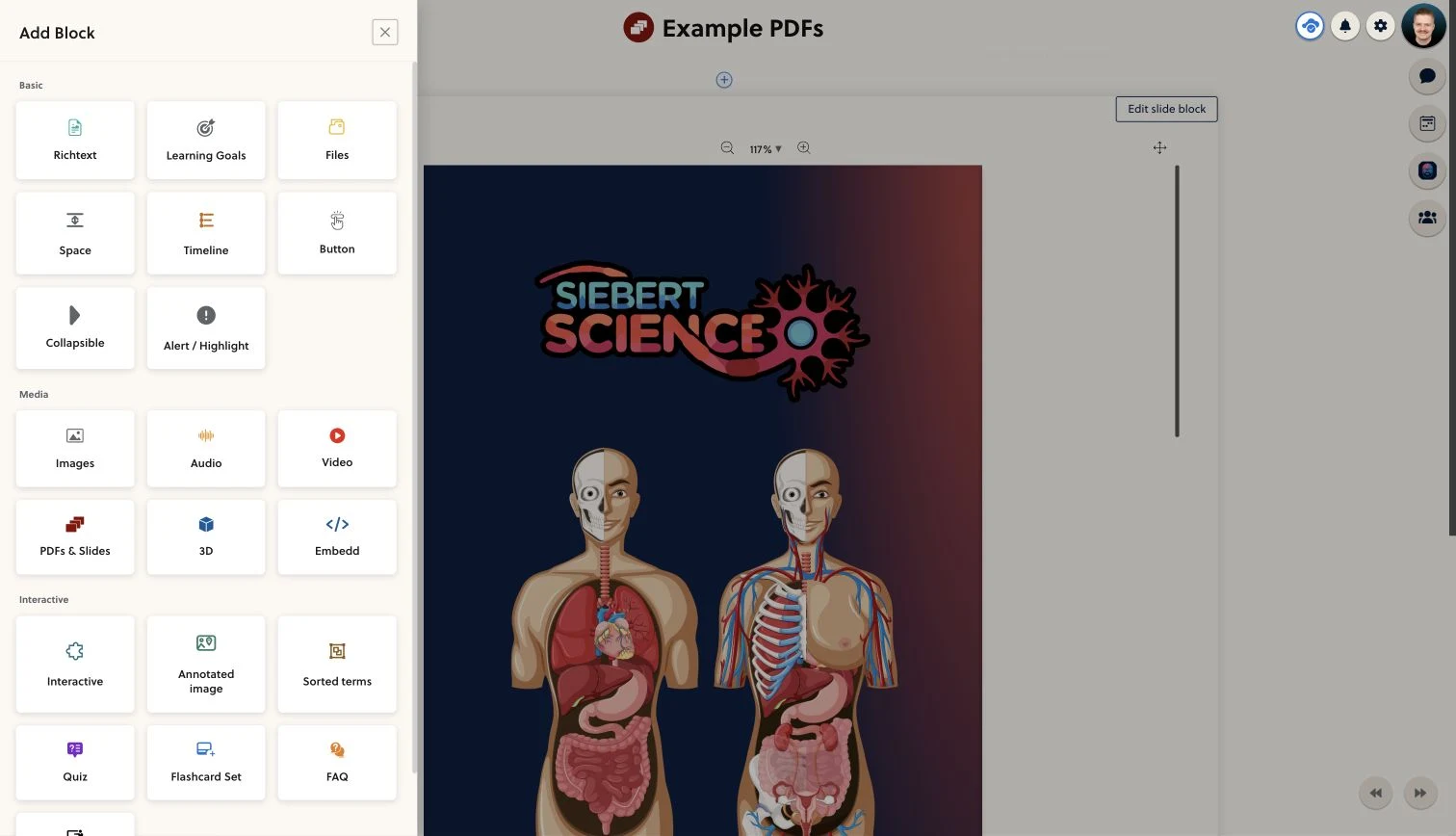
Use a supported external video link or an enabled video-library setup. Keep recording and editing in your existing tools, then place the finished video into the course where it belongs.
- Video resource
- Supported video link
- Enabled video library
- Lesson title
- Learning objective
- Supporting material
PrepOS is not a native camera or screen recorder. Hosting, storage and provider requirements need to be confirmed for your setup.
Give the video context and a next step.
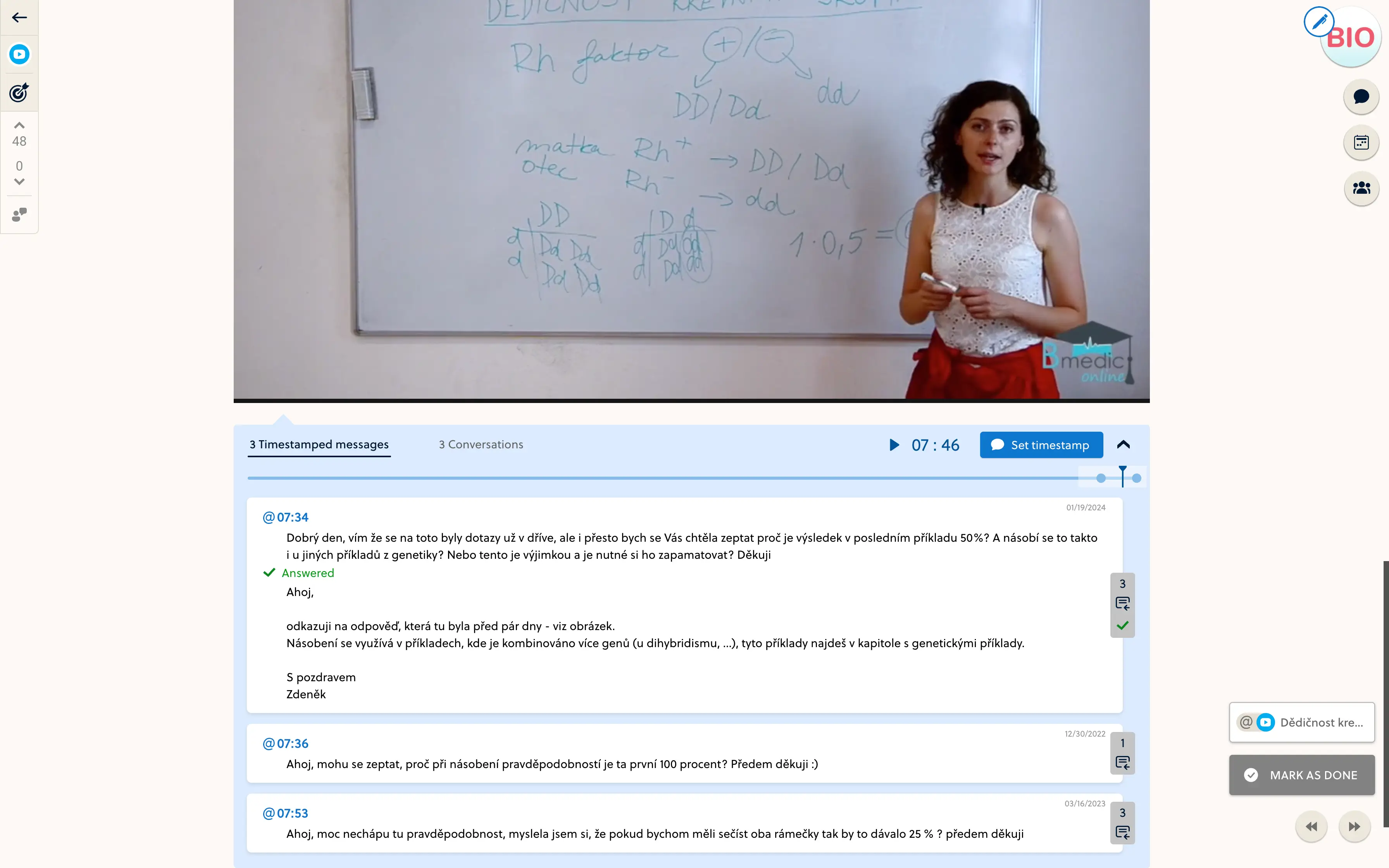
Introduce what students should notice, add the material they need and follow the video with practice. Where supported, chapters and timestamped questions help students return to a particular moment in the explanation.
- Add notes and documents around the video
- Use available chapters or timestamped discussion
- Connect the explanation to practice
Check the lesson, not just the video file.
Test playback from the learner view and confirm that the provider allows the video to play in your course. Check audio, captions where supplied, and the surrounding material on desktop and mobile.
- Check provider permissions and playback
- Review the explanation and practice sequence
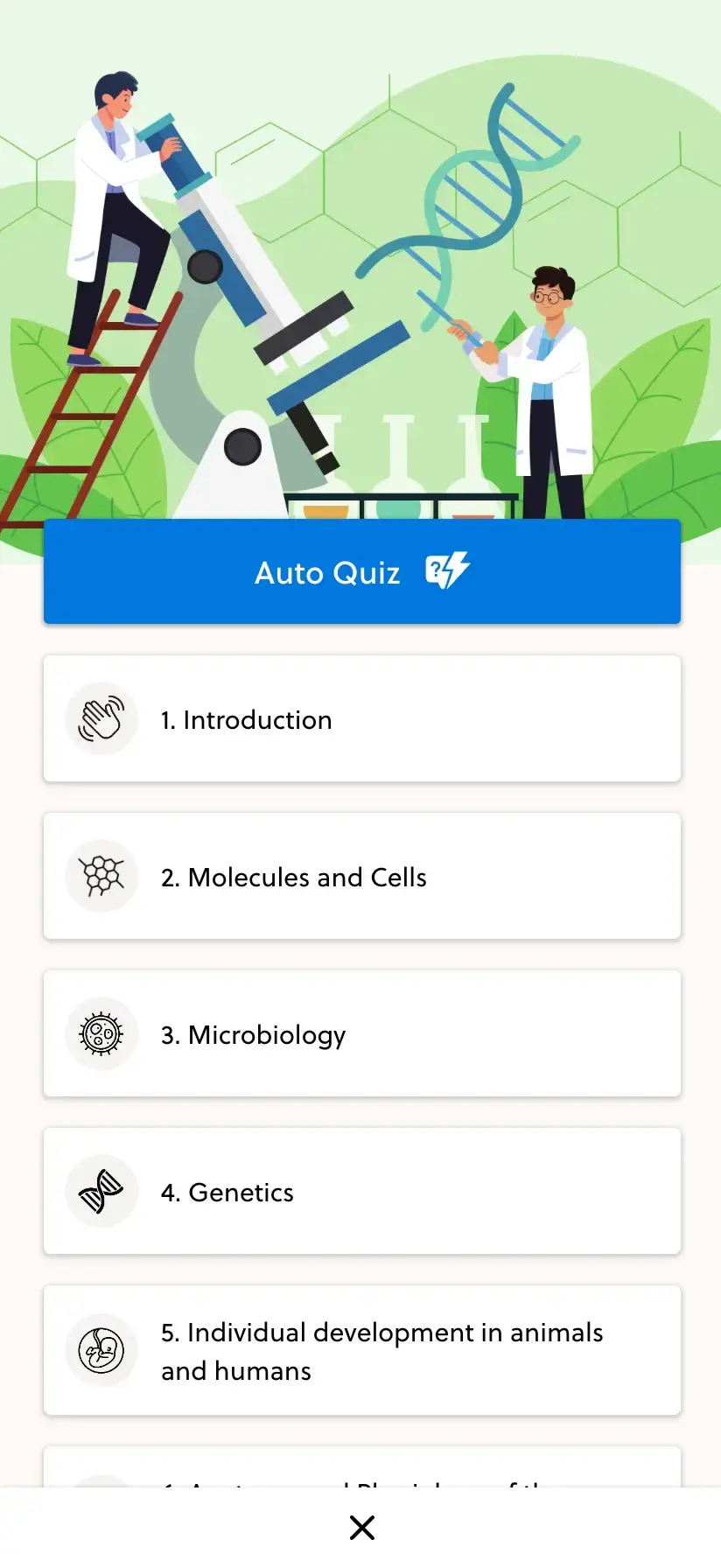
- Test video and material on a real phone
Frequently asked questions
Can I record or edit videos directly in PrepOS?
Not with a native camera or screen-recording tool. Record and edit in your preferred software, then add the finished video using a supported source.
Which video sources are supported?
The editor includes YouTube and Vimeo links and an enabled video-library integration. The available hosting route and its configuration should be confirmed for your space.
Can students ask about a specific moment?
Timestamped discussion is available in supported video lesson setups. Confirm the player and discussion configuration for your source; not every external embed exposes the same controls.
Is unlimited video hosting included?
Do not assume unlimited hosting or storage. Discuss the video provider, upload workflow, expected usage and any hosting costs as part of your setup.
Can I put exercises beside a video?
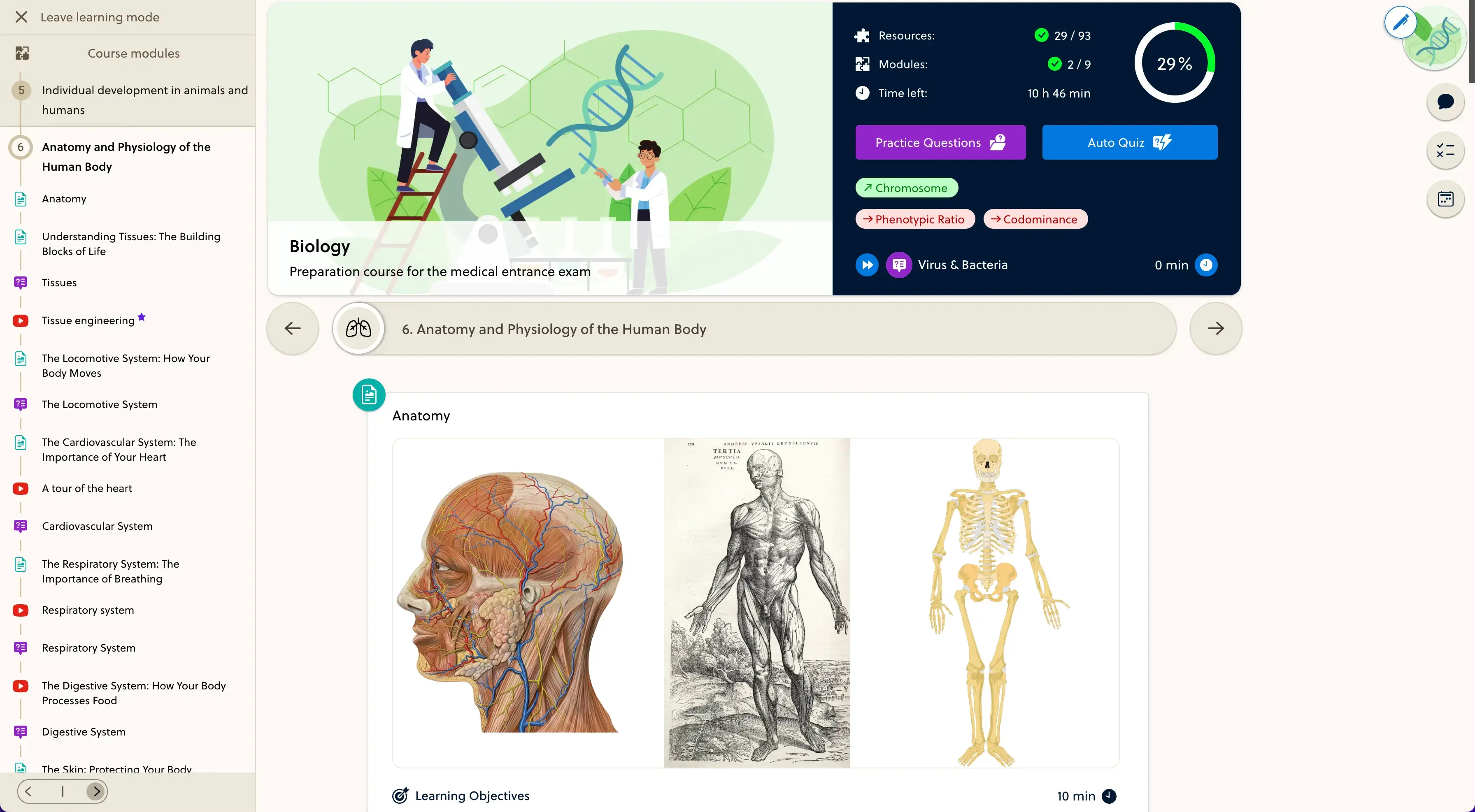
Yes. Combine the video with written content and supported practice blocks in a resource, or place a quiz next in the module. Check the full sequence from the learner view.
Bring one video. Build the lesson around it.
Walk through your video source, teaching material and student questions with the founder.